The
Delegate Controls comes into picture when want to brand a SharePoint
Site. The delegate control acts like a container control which
encapsulates default content (set of child controls inside it). The
default content (set of child controls associated with delegate) can be
substituted by a specific control, by creating a feature. The ability to
override or substitute the delegate controls brings the power &
flexibility to brand SharePoint Sites.
The
out-of-box SharePoint Foundation Master Page defines many controls like
Top Navigation Data Source, Left Navigation Data Source, Search Box and
Additional Page Head etc as delegate controls.
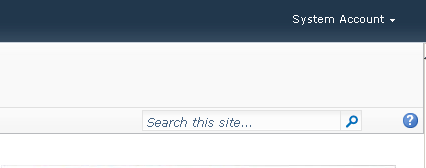
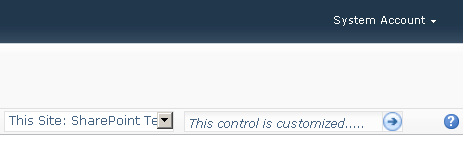
Replace SharePoint 2010 Search Box using Delegate Control
The list is illustrated below :-
<SharePoint:DelegateControl runat="server" ControlId="AdditionalPageHead"
AllowMultipleControls="true"/>
<SharePoint:DelegateControl runat="server" ControlId="GlobalNavigation" />
<SharePoint:DelegateControl runat="server" ID="GlobalDelegate0" ControlId="GlobalSiteLink0" />
<SharePoint:DelegateControl ControlId="GlobalSiteLink2" ID="GlobalDelegate2" Scope="Farm"
runat="server" />
<SharePoint:DelegateControl runat="server" ControlId="PublishingConsole"
Id="PublishingConsoleDelegate">
</SharePoint:DelegateControl><SharePoint:DelegateControl ControlId="GlobalSiteLink3" Scope="Farm"
runat="server" />
<SharePoint:DelegateControl runat="server" ControlId="SmallSearchInputBox" Version="4" />
<SharePoint:DelegateControl runat="server" ControlId="TopNavigationDataSource"
Id="topNavigationDelegate"/>
The above listed delegate controls can be substituted at runtime to achieve custom branding. Let’s
try to replace the Small Search Input box and see how the delegate
control helps for this process. The whole idea is to define a feature
for the Custom User Control with same control id mentioned in delegate
and the lowest possible sequence number.
Here are the steps below :-
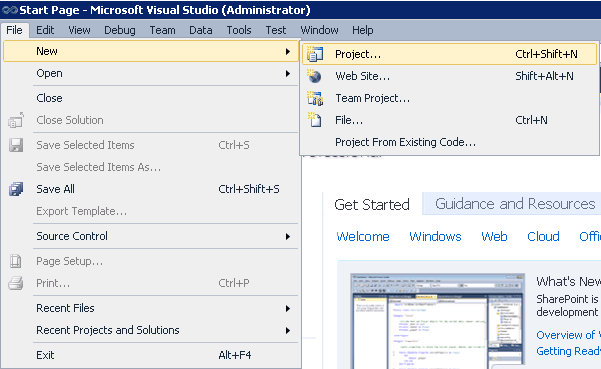
File ---> New Project ---> Empty SharePoint Project
Right Click Project –> Add New item –> User Control . Name it as ‘ReplaceSearchBox’
It automatically creates control templates folder and places the user control underneath that. Create
any arbitrary control inside the user control. For the illustration
purpose, I’ll add a Calendar Control inside the user control, to
visually show a difference how the page looks after the delegate
substitution.
<asp:Calendar ID="Calendar1" runat="server"></asp:Calendar>
It automatically creates control templates folder and places the user control underneath that.
Right Click Features –> Add Feature
Set the Feature Scope at Site (site-collection level)
Right Click Solution ---> Add New Item –> Empty Element
We’d
be leveraging Elements.xml file for the delegate substitution process.
Before jumping on to the substitution lets understand how the out-of-box
Search Box is defined using Feature.
The Search Box is defined in both the Features ‘OSearchBasicFeature’ and ‘OSearchEnhancedFeature’ in the location
C:\Program Files\Common Files\Microsoft Shared\Web Server Extensions\14\TEMPLATE\FEATURES
The definition looks like the following :-
<Elements xmlns="http://schemas.microsoft.com/sharepoint/">
    <Control
        Id="SmallSearchInputBox"
        Sequence="50"
        ControlClass="Microsoft.SharePoint.Portal.WebControls.SearchBoxEx"
ControlAssembly="Microsoft.Office.Server.Search, Version=14.0.0.0, Culture=neutral,
PublicKeyToken=71e9bce111e9429c">
    <Property Name="GoImageUrl">/_layouts/images/gosearch15.png</Property>
    <Property Name="GoImageUrlRTL">/_layouts/images/gosearchrtl15.png</Property>
    <Property Name="GoImageActiveUrl">/_layouts/images/gosearchhover15.png</Property>
    <Property Name="GoImageActiveUrlRTL">/_layouts/images/gosearchrtlhover15.png</Property>
    <Property Name="DropDownMode">ShowDD</Property>
        <Property Name="SearchResultPageURL">/_layouts/osssearchresults.aspx</Property>
    <Property Name="ScopeDisplayGroupName"></Property>
    <Property Name="FrameType">None</Property>
    </Control>
</Elements>
<Elements xmlns="http://schemas.microsoft.com/sharepoint/">
Here the Id & Sequence number of the control plays an important role.
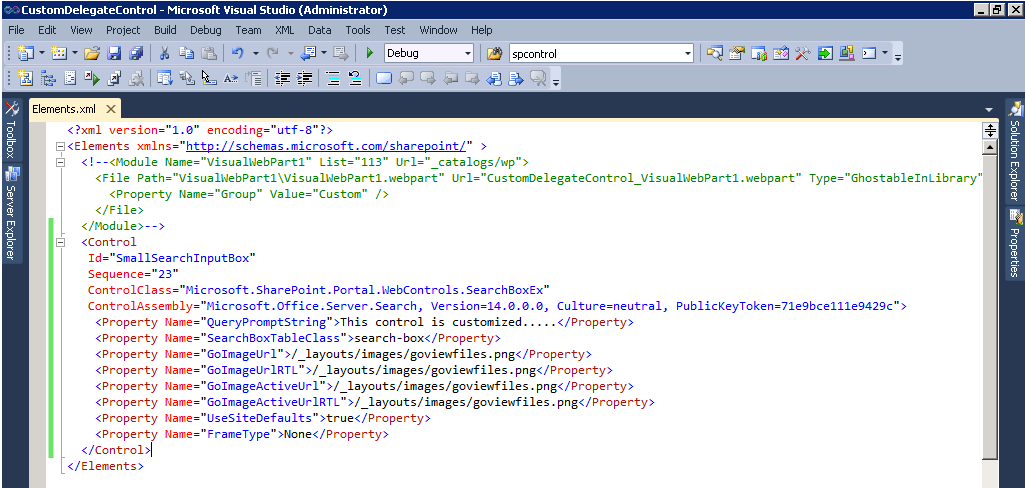
To substitute this out-of-box SmallSearchInput box, Let’s define Elements.xml file for Feature. The id of the control should match with id of control to be replaced.
The Sequence number should be less than the sequence number of the out-of-box control. In this case we’re assigning sequence number as 10, so that the control with the lowest
sequence number gets precedence.
    <Control Id="SmallSearchInputBox" Sequence="10"
      ControlSrc ="~/_controltemplates/ReplaceSearchBox/ReplaceSearchBox.ascx">
    </Control>
</Elements>
Since we’re using an user control for substitution, we need to make sure that ControlSrc attribute is defined. There is no need to define ControlClass and ControlAssembly attribute here.
I did define all the 3 attributes, but the substitution was not happening. I’ve learnt that it’s enough to define the ControlSrc attribute itself. Do not define all 3 attributes for user control,
the substitution will not happen. If you are using Custom Control, it makes sense to use ControlClass and ControlAssembly attribute.
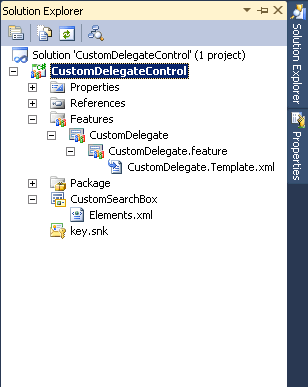
The final Solution Package looks like the following :-
Build the Project, Package it and Deploy.
Now you can see the the custom user control with Calendar replaces the Delegate control.